 Spenti
Turn bank notifications into expenses on iPhone, with one Shortcuts automation.
Your bank already tells you about every payment. One Shortcuts automation on your iPhone turns each of those alerts, from the bank app or by SMS, into an expense in Spenti by itself: no screenshot, no typing, and the message never leaves your phone. Setting it up takes about two minutes, and this guide shows every tap.
- What you need: an iPhone on iOS 27 or later for bank app notifications, or iOS 17 or later for bank SMS; Spenti installed; a bank whose alerts carry the amount.
- What you build: one automation in the Shortcuts app with a trigger (your bank's notification or SMS) and one action, Spenti's Add expense from message.
- What happens: each alert is read on the phone, saved as an expense, and never sent anywhere. Each saved message counts as one scan; ignored ones are free.
How it works
An iPhone app cannot read other apps' notifications. Shortcuts can. You build an automation that starts when your bank app sends a notification (iOS 27 or later) or when your bank sends an SMS (iOS 17 or later), and it hands the text to Spenti's action, Add expense from message. Spenti reads the amount, the shop and the time on the phone with its own rules, saves the expense, and tells you with a short notification of its own.
The automation runs even when Spenti is closed. Refunds lower your spending, money in is saved but never counts as spending, and one-time codes, balance notices and promotions are ignored. There is no bank login and no account: Spenti only ever sees the text of the alert.
Which banks does this work with?
Any bank or wallet whose alert carries the amount. That is most of them, but not all: some apps send only "You have a new transaction", and there is nothing to read in that. Never point the automation at a chat app such as LINE, even if your bank posts there: every chat message would be handed to Spenti. What Spenti reads depends on the language of the alert, not on the country of the bank.
| Where you bank | What Spenti reads today |
|---|---|
| Thailand | Tuned bank by bank: Bualuang mBanking, K PLUS, SCB EASY, Krungthai NEXT, KMA, ttb touch, MyMo, BAAC, UOB TMRW, KTC, CardX, TrueMoney, ShopeePay and LINE BK, in Thai and English. |
| Malaysia, the Philippines | General rules checked against real alerts from Maybank, CIMB, Public Bank, RHB, Touch 'n Go, GCash, Maya, BPI, BDO and others, in English and Malay, with some Filipino wording. |
| Singapore | English alerts from DBS, POSB, OCBC and UOB through the general rules, which read S$ and SGD; not yet checked against real Singapore alerts, so send one in if a payment is missed. |
| Myanmar | KBZPay, WavePay, AYA Pay, CB Pay and the other wallets, from the wording on their screens, in Burmese (Unicode) and English; no real alert has been verified yet. |
| UK, US, euro area | English-language alerts from Revolut, Monzo, Starling, Chase, Capital One, American Express, N26 and bunq. |
| Japan, Korea, Indonesia, Spain, France, Germany | English-language alerts only, for now: a bank app set to English, or a bank such as Revolut or N26 on an English phone. Alerts in the local language are kept as ignored until rules exist. Send one in from Spenti's bank messages settings and it gets a rule. |
This guide is also written for your market's banks: Malaysia (Bahasa Melayu), Malaysia (English), Philippines (English), Singapore (简体中文), Myanmar (မြန်မာဘာသာ), Spain (Español), France (Français), Germany (Deutsch).
Set it up for bank app notifications (iOS 27)
Use this if your bank app sends a notification for each payment, like Revolut, Chase, K PLUS or GCash. Check your bank first: some apps only notify money coming in (SCB EASY, for example, only alerts incoming PromptPay transfers), so for those use the SMS route below. On iOS 27 an automation lives inside the shortcut itself, as a trigger block at the top. The screenshots below are from an iPhone in English; the buttons sit in the same places in every language.
- Open Shortcuts, start a new shortcut and add the trigger When I receive a notification. Choose your bank's app; tap + to add more than one.
- Below it, add Spenti's action. Search for Add expense and pick Add expense from message. The action keeps its English name on every iPhone, whatever language the phone is set to.
- Tap the Message field. If it says Shortcut Input, delete it.
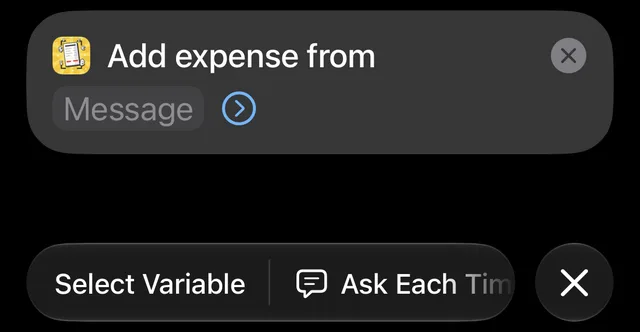
- Above the keyboard, swipe the variable bar until you see Notification, and tap it.
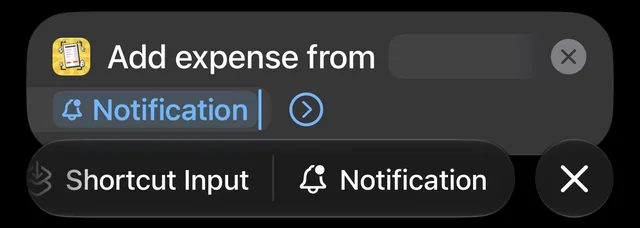
- Tap the Notification token you just added, and under Get choose Body. That is the text of the alert, with the amount in it.
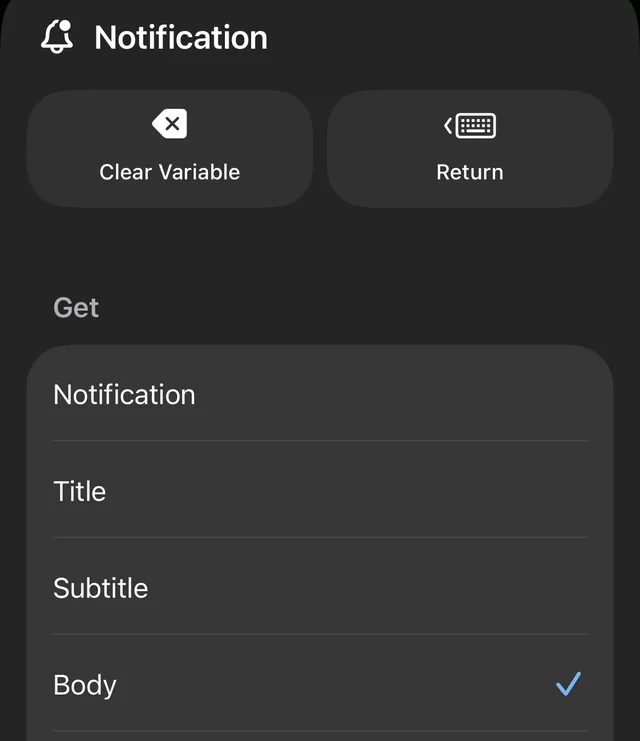
- Tap the arrow on Spenti's action to show From. Fill it the same way, but choose Title. Some banks put the shop or account in the title, and Spenti uses it. Keep just the one Title token there.
- Tap the arrow on the trigger block and make sure Automation is switched on. Notify can stay off.
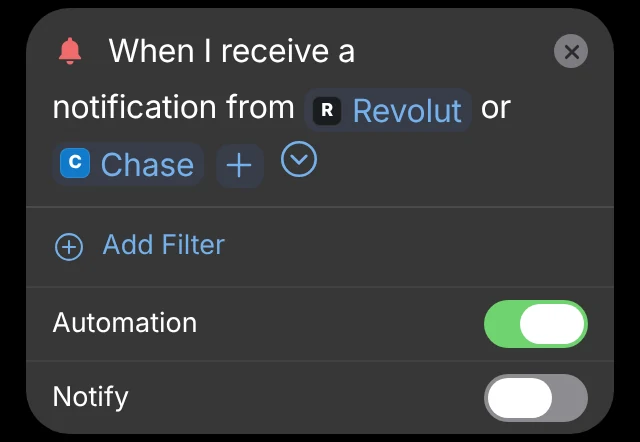
- Tap Done. Your bank's next alert saves by itself.
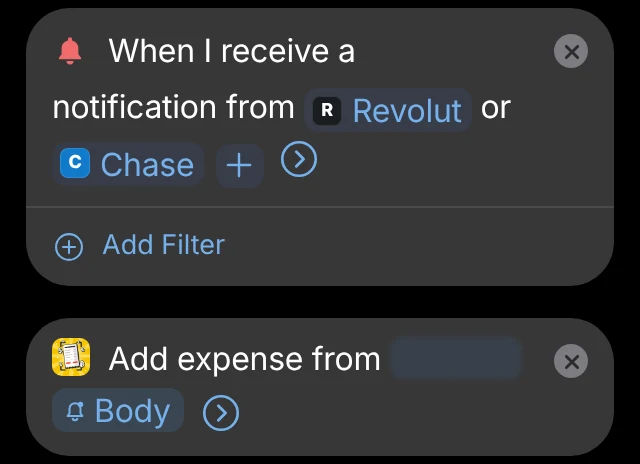
The one mistake to avoid: in a shortcut started by a trigger, Shortcut Input is empty. If the Spenti action reads Shortcut Input, Spenti reports an empty message. Always feed it the trigger's own variable, Notification › Body here, as in steps 4 and 5.
Set it up for bank SMS
On iOS 27
The same as above with a different trigger. Add When I receive a message, tap Add Filter and set Sender is your bank. Add Add expense from message, clear the Message field, tap Message in the variable bar, tap the token and under Get choose Content. Then switch the trigger's Automation on and tap Done.
On iOS 17 to 26
- In Shortcuts, open the Automation tab, tap + and choose Message.
- Set Sender to your bank, choose Run Immediately, and tap Next.
- Choose New Blank Automation and add Add expense from message.
- Set Message to Shortcut Input › Content, and tap Done.
Bank app notifications are not available as a trigger before iOS 27, so on these versions use your bank's SMS.
Check that it works
Make a small payment, or wait for the next one. Spenti posts a short notification saying what it saved, if you allow Spenti's notifications, and the expense pins to the corkboard in your room. In Spenti's settings, the bank messages page shows whether messages are arriving and what happened to the last few.
Nothing arrived? Check these, in order:
- Spenti says the message was empty. The action is reading Shortcut Input. Redo steps 3 to 5.
- Nothing happens at all. Make sure the trigger's Automation switch is on, and that the bank app is allowed to send notifications in iPhone Settings. Some banks only alert above a threshold you set in their app, so lower it to the minimum.
- Spenti says "Not an expense, ignored" for a real payment. Some bank apps send a bare "You have a new transaction" without the amount. Look in the bank app's own settings for a full-detail alert, or use the bank's SMS instead.
- The alert is in a language Spenti does not read yet. Check the table above. In Spenti's bank messages settings, open the ignored message and use Copy details for support to send it in; real alerts are how new rules get added.
Pay with Apple Pay too, where it is offered? A second automation, built from Spenti's Add Wallet payment action, files each tap in Wallet the same way. Spenti's bank messages page has a step-by-step picture guide for every version above. Spenti is live on iPhone; Android is next, and there it will read the bank apps' notifications itself, with no Shortcuts step.
Paying by QR instead? PromptPay slips to expense records covers the slips already in your photos.
Frequently asked questions
Can an iPhone turn bank notifications into expenses automatically?
Yes. iPhone apps cannot read other apps’ notifications, but the Shortcuts app can. A personal automation that starts on your bank’s notification (iOS 27 or later) or SMS (iOS 17 or later) hands the text to Spenti’s action, Add expense from message, and Spenti saves the expense on the phone, even while it is closed.
Which iPhones and iOS versions can do this?
Bank SMS works on iOS 17 or later. Bank app notifications need iOS 27 or later, the first iOS whose Shortcuts can start when a notification arrives. On iOS 17 to 26, use your bank’s SMS alerts instead.
Does my bank message leave the phone?
No. Shortcuts hands the text to Spenti on the same phone, and Spenti reads it there with its own rules. It is never sent anywhere, not even when Your own AI is turned on for receipts and chat.
Does it cost anything?
The feature is on every plan. Each message Spenti saves counts as one scan from your monthly allowance, like a scanned receipt: 30 a month on Free, 100 on Basic, unlimited on Pro. Duplicates and messages Spenti ignores, such as one-time codes, are free. When a month is used up, new payments wait and are saved next month or as soon as you upgrade.
Which banks work?
Any bank or wallet whose alert carries the amount. Spenti is tuned for Thai banks and wallets, reads English-language alerts from US, UK, European and Singapore banks, and has general rules for Malaysia, the Philippines and Myanmar. Alerts written in Japanese, Korean, Indonesian, German, French or Spanish are not read yet; they are kept as ignored, and you can send one in from Settings so a rule gets added.
Does it work with Apple Pay too?
Yes, through a second automation. Shortcuts has a trigger for a payment with a card in Wallet, and Spenti’s Add Wallet payment action files the amount, the shop and the card the same way, on the phone.
How do I stop it?
Open the shortcut in Shortcuts, tap the arrow on the trigger block and switch Automation off, or delete the shortcut. Spenti cannot see or change your shortcuts, so stopping happens there.
Does this work on Android?
Spenti is on iPhone today; Android is next. On Android the plan is different and simpler: Spenti reads your bank apps’ notifications itself once you grant it notification access, with no Shortcuts step.